Showing posts with label emulators. Show all posts

Thursday, December 20, 2018

PCem, old PCs emulator for GNU/Linux

PCem, is an old PCs emulator than simulate certain old machines like los Amstrad PC for example, this is not emulate only DOS system like DosBOX do so good.


Let's go to install and configure it.

Download and instalation

  1. Install all the necessary libraries:
    sudo apt-get install libsdl2-dev libopenal-dev libwxbase3.0-dev libwxgtk3.0-dev automake
  2. Download  latest available version of code from bitbucket.
  3. Create a folder and uncompress in it:
    mkdir pcem
    cd pcem
    tar -zxvf ../PCemV14Linux.tar.gz
  4. Compile and install:
    sudo chmod +x ./configure
    ./configure --enable-release
    make
    sudo make install

Configuration

Run emulator a first time:
pcem
You get an error because you haven't any BIOS but .pcem folder will be created in your $HOME with all the folder structure to add all the files you need:

FolderContents
configsEach system configuration file.
logsemulator logs (errors and warnings).
nvrnvr
romsESSENTIAL: the roms you need for each system.
This folder contains a folder for each PC type to emulate.
screenshotsScreenshots.
Other foldersYou can create HD and DSK folders to add HD or floppy images for example.

If we have a configuración of a Windows pcemu for example, we need to copy configuration in .pcem folder.

We can change some things in emulation while machine is running clicking with right button into the emulation window.


Or we can use dialog boxes we can see when pcem start with any roms files included. This allow us add more configuration profiles or change the ones we have.


Important: check that all configuration files have the right path.

Monday, June 25, 2018

Linapple y The Octalyzer: Apple II emulators for GNU/Linux

Linapple

Linapple is an emulator of the mythical Apple II quite simple and intuitive to use:
  

Instalation

Follow these steps to install it in GNU/Linux (Debian, Raspbian or Ubuntu):
  • Download the source code from sourceforge.
  • Uncompress it.
  • Install all the necessary packages to compile it.
    sudo apt-get install zlib1g-dev libcurl3 libzip-dev libsdl1.2-dev libcurl4-gnutls-dev
  • Compile it:
    cd src
    make
    sudo make install

Use

To run the emulator just type 'linapple' in the linux console.
Press F1 and you get information about all the function keys:


The Octalyzer

Other amazing Apple ][ emulator is The Octalyzer:
  • Multisystem: available for GNU/Linux (32 & 64 bits), Windows (32 & 64 bits) and OSX.
  • It's a unique binary file, you only need copy it to /usr/local/lib and run octalizer to enjoy it.
  • Drag and drop disk images to the windows, to open them.
  • Can render the images to 3D

Enjoy both emulators :)
Artículo original en castellano

Sunday, October 22, 2017

How to run DOS games in Batocera or Recalbox 4.1

You can run fullscreen DOS games in Batocera or Recalbox (4.1 or newer).
You need copy them like this:
  1. Select /recalbox/share/roms/dos/
  2. Create a folder with the name of the game adding ".pc" (like  galaxia.pc)
  3. Copy all the files of the game to this folder.
  4. Create a dosbox.bat file, these file must content the fullname of the executable file (like GALAXIA.EXE).
  5. Update games in recalbox/batocera menu.
We need repeat steps 1 to 4 for each game we add, and do the step 5 when we finished.
Artículo original en castellano
Note: Don't use notepad for Windows because this buggy software can add strange and invisible characters. Better use a good text edit like jEdit.

Tuesday, October 03, 2017

Manage recalbox from your PC browser: configuration, file upload, virtual remote control and kodi

Recalbox is surprising me every day with its ease of use and power, today I will talk about the wide possibilities of use from your PC browser.

Access to your configuration: http://recalbox.local

You can do here:
  • Configure the Recalbox OS.
  • Upload files dragging them.
  • Monitory the activity and see logs.

Virtual Game Pad: http://recalbox.local:8080 

If you click on Use Virtual Game Pad or input this url in your browser you see an image of a SNES virtual controller you can use like a real one.

You can use it with a mobile phone or tablet with access to your wifi.
Warning: Do not expect a high speed response due to limitations in your screen device.
 

Kodi: http://recalbox.local:8081 

You are probably asking for Kodi web service, can I use?
Yes, you can, but in recalbox use the 8081 port, and you can access if Kodi is running and the service activated.
So we can access from your PC web browser to your raspberry pi mediacenter, send youtube videos with Send to Kodi or use the mobile like a remote control with Yatse or any similar app.


Advice: If you can't access from these URLs, use your IP instead of recalbox.local
Artículo original en castellano

Friday, September 01, 2017

How to run CPCXFS under Debian or Ubuntu

CPCXFS is a DSK Amstrad CPC disk image editor for use with emulators, you can:
  • Create new DSK images.
  • List the contents of the DSK.
  • Add, rename or delete files in the DSK.
  • Etc.

Setup

Follow these steps in order to install it in your GNU/Linux distro:
  • Add the necessary packages to compile and install:
    sudo apt-get install termcap* build-essential
  • Download the lastest versión.
  • You can uncompress it with nautilus, mc or console with the command:
    unzip -x cpcxfs.zip
  • Compile it:
    cd src
    make -f makefile.lnx clean
    make -f makefile.lnx
  • Move the binary to /usr/local/bin to get available in any path
    sudo mv cpcxfs /usr/local/bin/

Use

You can use this software in the linux console, you can see all the possibilities with the command:
cpcxfs --help

You can see some help files into the zip:
  • cpcxfs.doc: text plain file, you can use your distro text editor.
  • cpcxfs.hlp: windows help file, you can use xchm to read it.
Some interesting examples of use:
ExamplesResult
cpcxfs disc.dsk -dShow the contents of the DSK
cpcxfs disc.dsk -sShow statistics and technical information about the DSK
cpcxfs disc.dsk -g fileExtract a file from the DSK
cpcxfs disc.dsk -p fileAdd a file from the DSK
cpcxfs disc.dsk -mg file*Extract the files from the DSK acording to the input mask
cpcxfs disc.dsk -mp file*Add the files from the DSK acording to the input mask
cpcxfs disc.dsk -hMore help
..
Artículo original en castellano

Monday, August 21, 2017

Run old DOS games in GNU/Linux with DosBox

We can run old DOS games and utilities with 'DosBox'

DosBox


You can install it on Ubuntu or Debian from Linux console with the command:
sudo apt-get install dosbox
Make a folder like $HOME/dosutils, and copy all the DOS software, each program in a separate folder.

To run DosBox just type 'dosbox' and  type this command in DOS console to mount C:
mount c /home/yourusername/dosutils

We can automatize the booting of software with $HOME/.dosbox/dosbox-x.xx.conf config file.

This file have several sections and parts, there are the most interesting ones:
  • fullscreen : DosBOX may boot in fullscreen changing this. You can toogle between window and fullscreen pressing Alt + Enter keys
  • [autoexec] : all the lines you put down of this section with run after DosBOX boot, for example:
mount c /home/yourusername/dosutils
c:
If you see that your game runs more slowly than usual yo can increase the speed with CTRL + F12 keys.

There is a lot of DOS games and general software in public domain, free software, etc... for example Champ Games.


Artículo original en castellano

Saturday, July 08, 2017

Install vice 3, the new version of the commodore emulator, in Ubuntu or Debian (including raspbian for raspberry pi)

Vice is one of the most powerful and famous Commodore computers emulators (not Amiga), it is really like an emulation suite since each platform has a specific executable and you have to call from the console (and not only in GNU/Linux, although always we can create shortcuts).

Now the new version 3.4 was launched with a lot of improvements, but the programmers didn't launch binaries for any GNU/Linux distro, so we need download the source code, uncompress and compile it, but this is very easy typing the next commands in your console (copy & paste):
sudo apt-get install xa65 build-essential byacc texi2html flex libreadline-dev libxaw7-dev texinfo libxaw7-dev libgtk2.0-cil-dev libgtkglext1-dev libpulse-dev
wget -c https://downloads.sourceforge.net/project/vice-emu/releases/vice-3.4.tar.gz
tar -zxvf vice-3.4.tar.gz
cd vice-3.4
./configure --with-x --without-pulse --with-sdlsound --enable-sdlui2 make
sudo make install
You need copy the BIOS files in your folder .vice into $HOME folder, inside .vice must be a folder for each system:
C128 C64 C64DTV CBM-II DRIVES PET PLUS4 PRINTER SCPU64 VIC20
These are the commands to run each system:
x128  x64  x64dtv  x64sc  xcbm2  xcbm5x0  xpet  xplus4  xscpu64  xvic

There are also tools to transfer data between your commodore and your PC as c1541 or cartconv to manage floppies or cartridges respectiveness.
You can see the documents enclosed to the software for more details.

Artículo original en castellano

Monday, July 03, 2017

First Amstrad CPC emulators in GNU/Linux

Amstrad CPC are computers that I have a lot of affection since my first two computers were a CPC464 and a CPC6128, in fact the last one is still running and keeping 100% operative.

 CPC wiki

So I like to play my games of my teen in GNU/Linux and I start using CPCEMU emulator for it.
CPCEmu for DOS was the first CPC emulator I knew, it was great. GNU/Linux version was one of the best native emulator, install it is very simple:
  • Download lastest version for GNU/Linux.
  • Uncompress it in a folder.
  • Select the folder and type the commands cpc464, cpc664 or cpc6128 it depends of the model you want to run.
  • You needn't search the BIOS because BIOS distribution with emulators was allowed by Amstrad, but only provided it is only for that purpose. Therefore, CPCEMU already includes the BIOS.
  • You find some folder intro the instalation folder DISC/, ROM/, SNAP/, TAPE/, UTILITY/ to put on them disk images, ROMs, snapshots, single files and utilities.
All these files can be into a ZIP file that emulator show them like folders, this is useful to save a lot of space.
See the enclosed manual, very interesting.


Other native emulators for GNU/Linux are M.E.S.S., Arnold, CPC++ or cpc4x, but they are more complicated for compiling and installing and they don't have so much features and have less performance than CPCEMU.

I asked in Amstrad CPC forum, MiguelSky ask me than there is a version of arnoldCPC emulator that runs ok in older GNU/Linux distros.

You need download the old version for Windows (includes all the BIOS and necessary files) and add to it the new executable file for GNU/Linux.

But now there is a new version of Arnold WIP CPC Emulador.  that run better in lastest GNU/Linux distros.

Also, KaosOverride recomends me recompile Caprice emulator.


After some years he made a fork called CapriceRPI for raspberry pi with a fancy menu and a lot of improvements. This fork can also be compiled and runs on PC GNU/Linux.
Thank you both for the information.

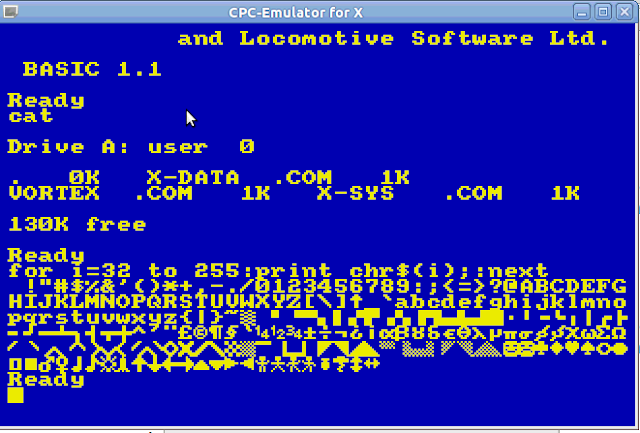
Another emulator I run with success is CPC emulator for X.


By the way, most of the Amstrad CPC emulators for Windows run ok in GNU/Linux using wine.

Original articles

Sunday, June 18, 2017

Amstrad PCW emulation in GNU/Linux

The possibility of running software Amstrad PCW in a GNU/Linux is not well known because there are usually no emulators available in the official repositories of most distributions, unlike in other platforms such as commodore , spectrum , ataris , etc...
 

But there is an emulator for Amstrad PCW called Joyce, that works very well and we can install doing in any GNU/Linux (including raspberry pi), just follow these instructions:

  1. Download lastest version for Unix.
  2. Uncompress this file in a folder, for example in /opt . You can rename the subfolder as pcw:
    cd /opt
    sudo tar -zxvf joyce-2.2.7.tar.gz
    mv joyce-2.2.7 pcw
  3. Compile the code (we'll need libxml2-dev pack):
    sudo apt-get install libxml2-dev
    sudo chmod +rw pcw
    cd pcw
    ./configure
    make
    sudo make install
  4. You also need an image of CP/M plus boot disk, copy it on $HOME/Joyce/Boot folder and rename as boot?.img where ? is a number from 0 to 9.
  5. You'll need a real PCW to use them legality (A friend presents me one), in any case you need search in another site or get from your own PCW with the necessary tools, I can't provide a link to these files.
  6. You can run the emulator with this command:
    xjoyce
Artículo original en castellano